Issue a credential
The Hovi Connect API's Credentials endpoints let you issue credentials from your own product. You send a credential offer based on one of your credential templates, and the holder accepts it in the Hovi Wallet or another supported wallet. Once a template exists, it can be reused to issue credentials to many people, and other organizations in the same ecosystem can use it too.
Before you start
Make sure you have:
- An API key for your ecosystem, and the ID of the organization that issues the credential (sent in the
x-organization-idheader). - A credential template for the credential you want to issue.
- For cheqd, Indicio and Polygon only: a connection with the holder. EU Digital Identity and Microsoft Entra don't use connections.
The steps below use the interactive API Reference, where you can try each request in your browser.
Steps
Choose your ecosystem. Hovi remembers your choice on other pages.
 EU Digital Identity
 Microsoft Entra
 cheqd
 Indicio
 Polygon
EU Digital IdentityCredential formats: JSON-LD, SD-JWT and mDoc. The example uses SD-JWT.
- Open the API Reference and select the EU Digital Identity Ecosystem API under Hovi Connect API.
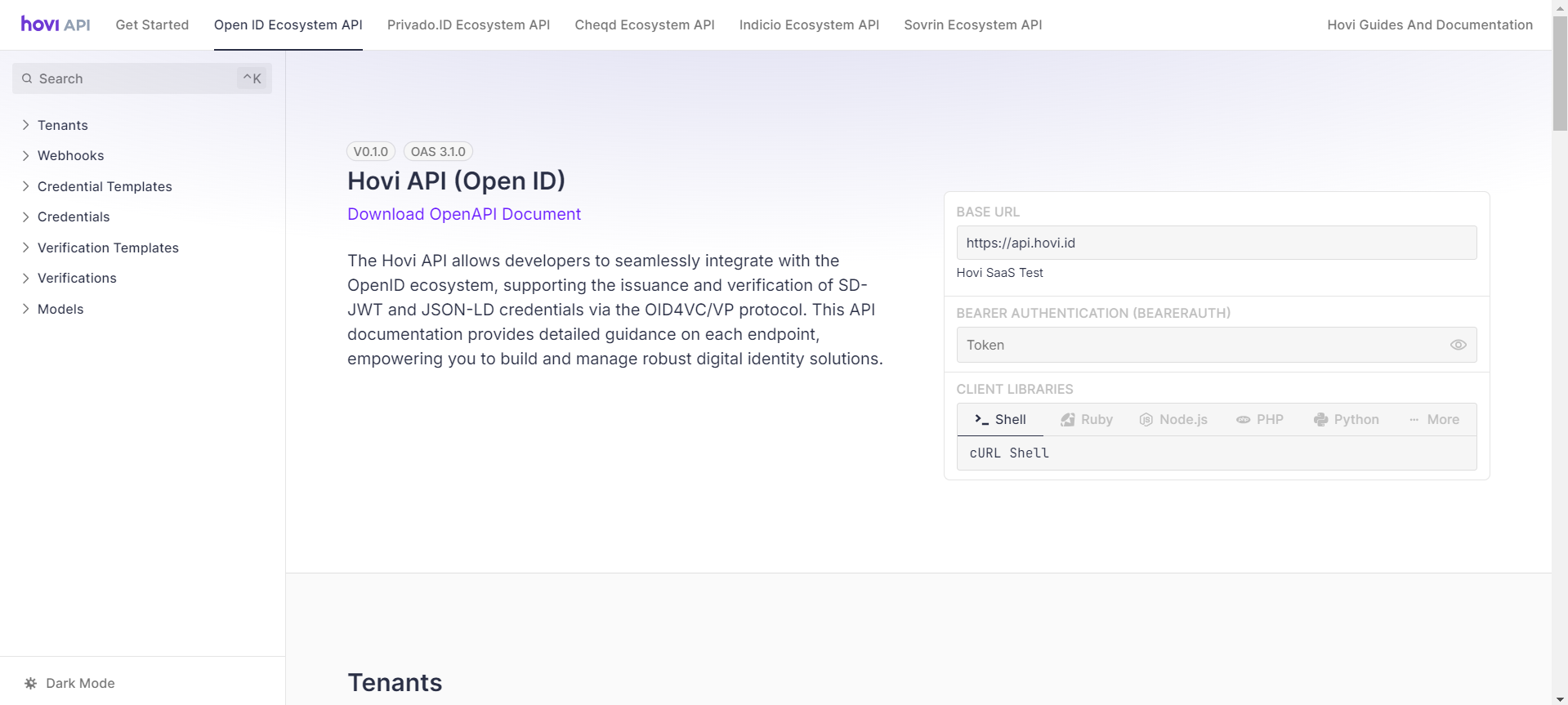
- Go to the Credentials section.

- Open POST - Offer Credential (SD-JWT) and click Test Request.

- Enter your API key as a Bearer Token, fill in the body parameters and click Send.

- The response includes
credentialOfferUrl, a link to a QR code that the holder scans with their wallet, andcredentialOfferUri, the same offer for a wallet to open directly. If you asked for a transaction code, the response also includestransactionCode.
Choose how the holder gets the credential
EU Digital Identity supports two issuing flows. Set the flow with codeflow.
-
Pre-authorized code flow (
"pre-authorized", the default): the holder scans the offer and receives the credential. You can also ask for a transaction code (a one-time PIN) that the holder enters in their wallet before they receive the credential. Turn it on withpreAuthorizedCodeflowConfig. The code has 6 to 10 digits (6 by default):{
"credentialTemplateId": "<CREDENTIAL_TEMPLATE_ID>",
"credentialValues": { "name": "Alex Smith" },
"codeflow": "pre-authorized",
"preAuthorizedCodeflowConfig": {
"useTransactionCode": true,
"transactionCode": {
"length": 6,
"description": "Enter the code we sent you"
}
}
}The response's
transactionCodeis the code to give to the holder. -
Authorization code flow (
"authorization"): the holder's wallet sends them to your own sign-in system, for example your company or university login, and they receive the credential after they sign in. Details such as their name and email can be filled in from the sign-in. First add an authorization server to your organization.Then pass
authorizationCodeflowConfig:authorizationServerId(required): which of your organization's servers the holder signs in with.signInScopes(optional): the scopes asked for at sign-in for this offer only, instead of the server's defaults.openidis always added.walletRedirectUris(optional): the wallet redirect URIs allowed for this offer only, instead of the server's defaults.issuerState(optional): your own value linking the sign-in to this offer, unique for each offer. If you leave it out, Hovi generates one.offerScope(optional): the scope in the offer'sauthorization_codegrant. If you leave it out, the credential's scope is used (see credential templates).
{
  "credentialTemplateId": "<CREDENTIAL_TEMPLATE_ID>",
  "credentialValues": { "memberId": "M-0001" },
  "codeflow": "authorization",
  "authorizationCodeflowConfig": {
    "authorizationServerId": "<AUTHORIZATION_SERVER_ID>",
    "signInScopes": ["profile", "email"]
  }
}
Details from the sign-in: template attributes marked
authorization: trueare filled from the holder's sign-in, so leave them out ofcredentialValues. Their names must match what the sign-in system returns exactly, for examplegiven_name,family_nameoremail, and you must ask for the matching scopes (profilefor names,emailfor email). If a required attribute isn't returned, the credential isn't issued.
authorizationServerId is now required: Hovi no longer uses your organization's first server by default. authorizationServerUrl is removed; use authorizationServerId instead.
Microsoft EntraCredential format: JWT-VC.
- Open the API Reference and select the Microsoft Entra Ecosystem API under Hovi Connect API.

- Go to the Credentials section.

- Open POST - Offer Credential (JWT-VC) and click Test Request.

- Enter your API key as a Bearer Token, fill in the body parameters and click Send.

- The response includes
credentialOfferUrl, a link to a QR code that the holder scans with Microsoft Authenticator, andcredentialOfferUri, the same offer for a wallet to open directly. The offer stops working atofferExpiresAt.
Ask for a PIN (optional)
Set pinRequired to true to make the holder enter a PIN before they receive the credential. Set the PIN's length with pinLength: 4 to 16 digits, 4 by default. When a PIN is required, the response also includes the pin to give to the holder.
cheqdCredential formats (sent over DIDComm): AnonCreds and JSON-LD. The example uses JSON-LD.
- Open the API Reference and select the cheqd Ecosystem API under Hovi Connect API.

- Go to the Credentials section.

- Open POST - Offer Credential (JSON-LD) and click Test Request.
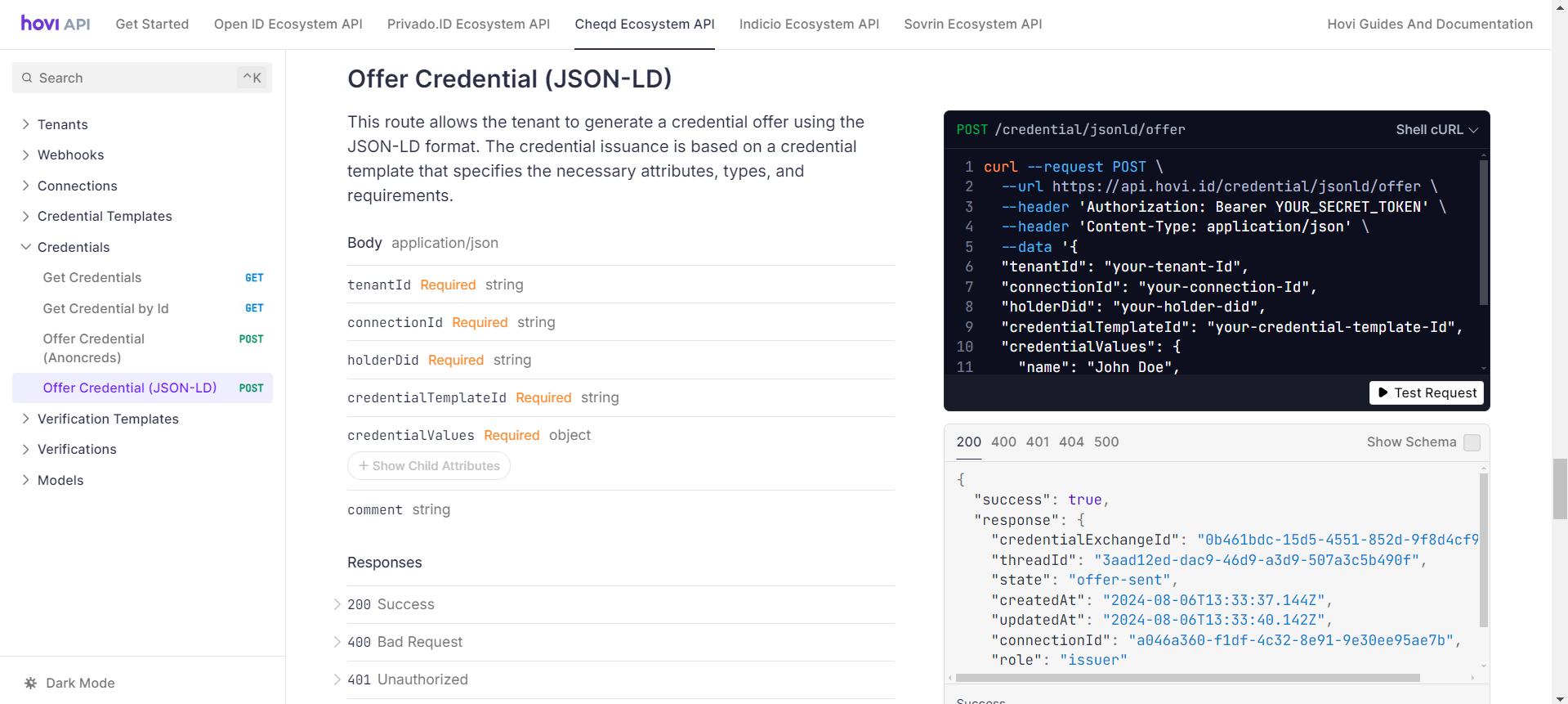
- Enter your API key as a Bearer Token, fill in the body parameters (including the
connectionIdof your connection with the holder) and click Send.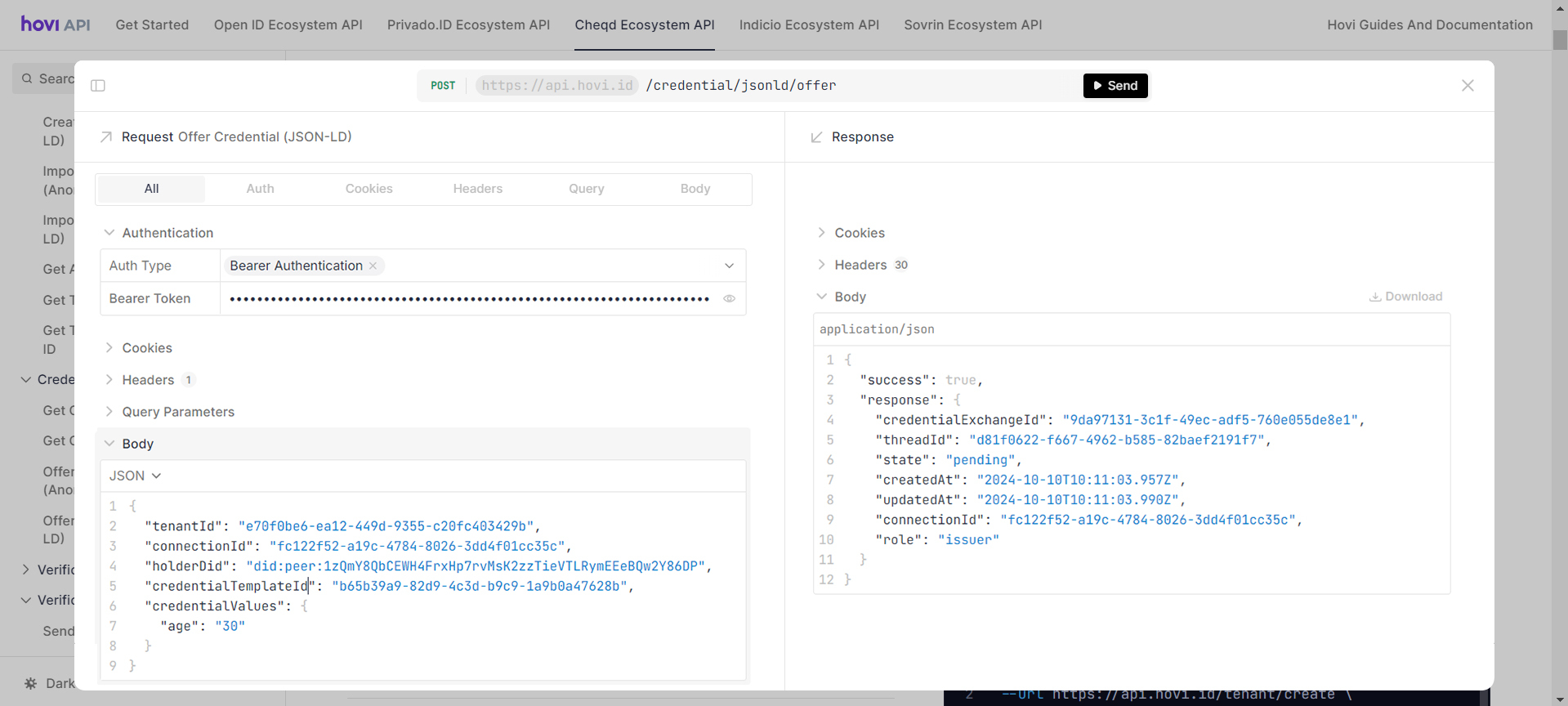
- The offer goes to the holder over your connection, so the response has no offer URL. Once they accept it, the credential is stored in their wallet.
IndicioCredential formats (sent over DIDComm): AnonCreds and JSON-LD. The example uses AnonCreds.
- Open the API Reference and select the Indicio Ecosystem API under Hovi Connect API.

- Go to the Credentials section.

- Open POST - Offer Credential (AnonCreds) and click Test Request.

- Enter your API key as a Bearer Token, fill in the body parameters (including the
connectionIdof your connection with the holder) and click Send.
- The offer goes to the holder over your connection, so the response has no offer URL. Once they accept it, the credential is stored in their wallet.
PolygonCredential format: JSON-LD. These are W3C JSON-LD credentials, signed with a BabyJubJub signature or proven with an Iden3 sparse Merkle tree proof.
- Open the API Reference and select the Polygon Ecosystem API under Hovi Connect API.

- Go to the Credentials section.

- Open POST - Offer Credential (JSON-LD) and click Test Request.

- Enter your API key as a Bearer Token, fill in the body parameters (including the
connectionIdof your connection with the holder) and click Send.
- The response includes
credentialOfferUrl, a link to a QR code that the holder scans with their Privado ID wallet, andcredentialOfferUri, the same offer for a wallet to open directly. Once you're connected, the offer is all the holder needs.
Revoke a credential
EU Digital Identity only. You can revoke an SD-JWT credential so it can no longer be used. Revocation works only for credentials issued from an SD-JWT template created with supportRevocation set to true, and only through the API.
Available on every paid plan, but not during the free trial. During the trial, the request returns 403 Forbidden.
Send POST - Revoke Credential with your API key and x-organization-id, and the credentialExchangeId from the offer response:
{
  "credentialExchangeId": "<CREDENTIAL_EXCHANGE_ID>"
}
What happens next
Once the holder accepts the offer, the credential is stored in their wallet and they can share it whenever someone needs to check it. To get notified when that happens, set up webhooks. To check credentials from your product, see Verify a credential. For which formats each ecosystem supports, see Compatibility.