Verify a credential
Verifying a credential means asking someone to share a credential from their wallet and checking that it's genuine. In Hovi Studio you send a verification request, the person shares the credential, and Hovi shows you the result.
Before you start
Make sure you have:
- A Hovi Studio account with your organization and ecosystem set up.
- A verification template that says what you want to check.
- For cheqd and Indicio only: a connection with the person you're verifying.
Steps
Choose your ecosystem. Hovi remembers your choice on other pages.
 EU Digital Identity
 Microsoft Entra
 cheqd
 Indicio
 Polygon
EU Digital IdentityThe person scans a QR code with their wallet to share the credential.
- Sign in to Hovi Studio.
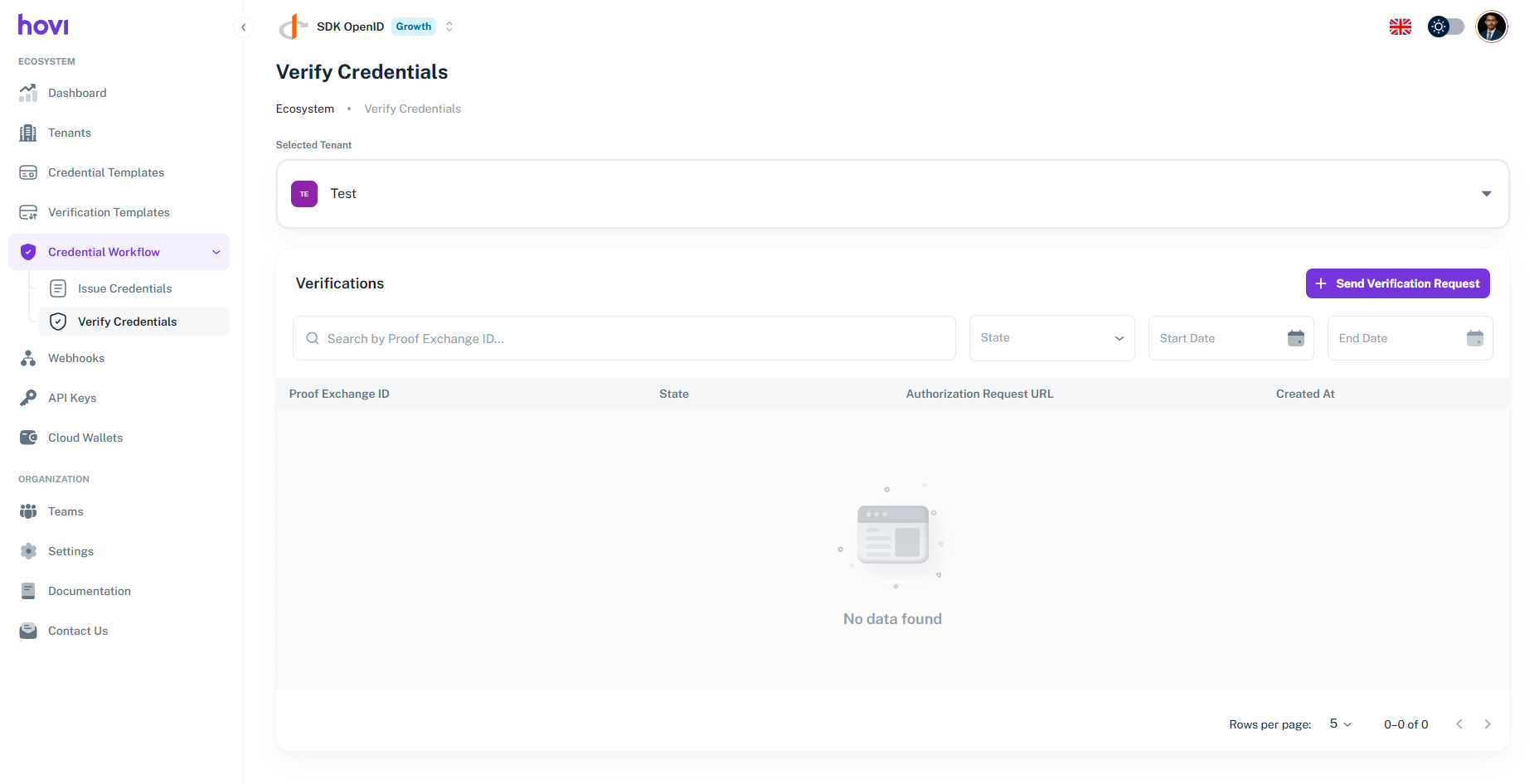
- In the left menu, open Credential Workflow and click Verify Credentials. Then click Send Verification Request.
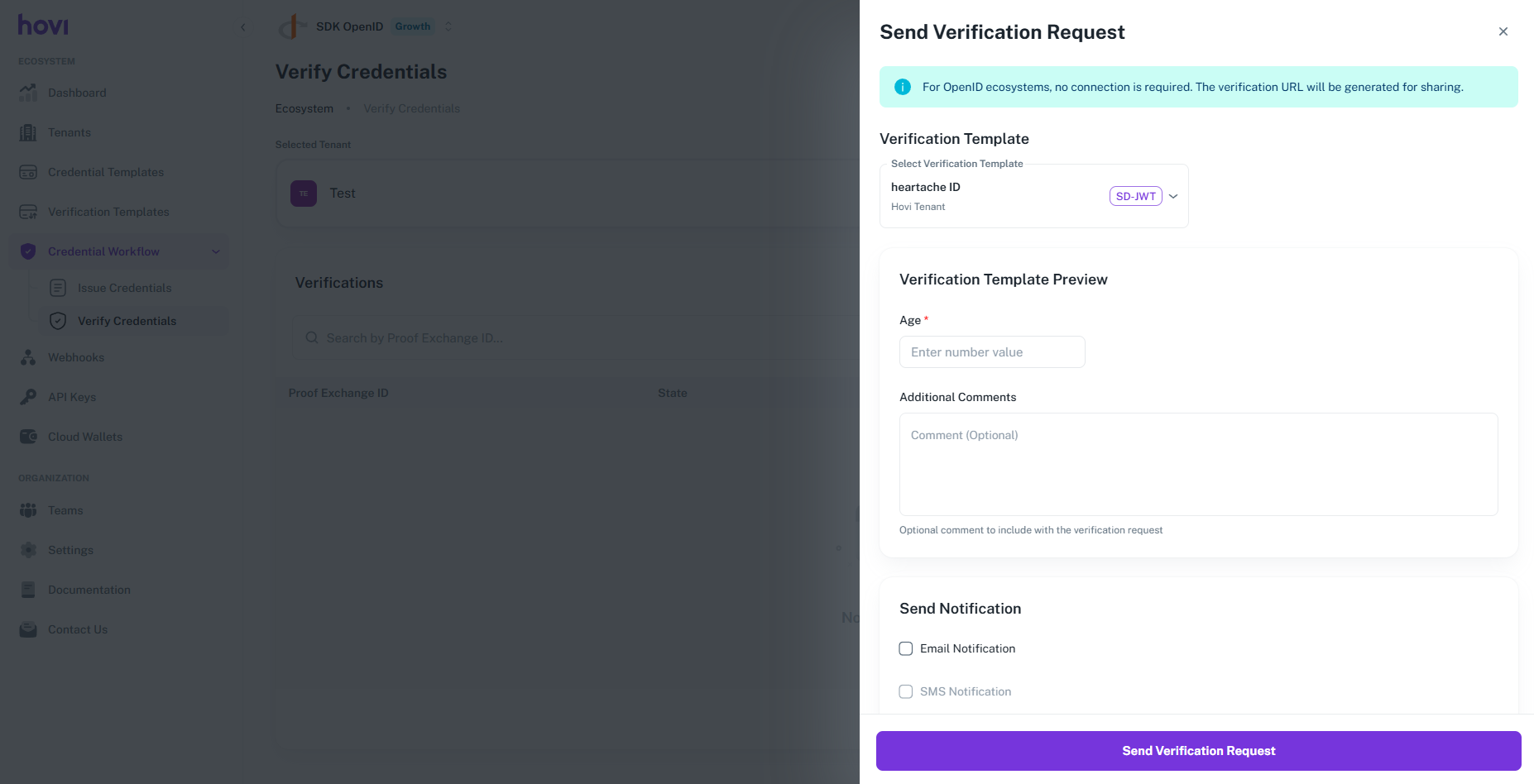
- Choose a verification template and click Send Verification Request.
- Click Show QR Code and have the person scan it with their wallet, or copy the verification link and send it to them.
- Every request and its status is listed under Verify Credentials.
Microsoft EntraThe person scans a QR code with their wallet to share the credential.
- Sign in to Hovi Studio.
- In the left menu, open Credential Workflow and click Verify Credentials. Then click Send Verification Request.

- Choose a verification template and click Send Verification Request.

- Click Show QR Code and have the person scan it with their wallet.

- To follow the result, click See Verification Progress. Every request and its status is also listed under Verify Credentials.

cheqdYou send the request over your connection with the person, so it goes straight to their wallet.
- Sign in to Hovi Studio.
- In the left menu, open Credential Workflow and click Connections.

- On the person's connection, click Verify Credential.

- Choose the verification template and the connection, check the preview and click Send Verification Request.

- The request arrives in the person's wallet. Once they accept it, the credential is verified.

- To follow the result live, click See Verification Progress.

The person can only share a credential they already have in their wallet.
IndicioYou send the request over your connection with the person, so it goes straight to their wallet.
- Sign in to Hovi Studio.
- In the left menu, open Credential Workflow and click Connections.

- On the person's connection, click Verify Credential.
- Choose the verification template and the connection, check the preview and click Send Verification Request.
- The request arrives in the person's wallet. Once they accept it, the credential is verified.
- To follow the result live, click See Verification Progress.
The person can only share a credential they already have in their wallet.
PolygonThe person scans a QR code with their wallet to share the credential. You don't need a connection.
- Sign in to Hovi Studio.
- In the left menu, open Credential Workflow and click Verify Credentials. Then click Send Verification Request.
- Choose a verification template and click Send Verification Request.
- Click Show QR Code and have the person scan it with their wallet. Once they share the credential, it's verified.

- Every request and its status is listed under Verify Credentials.
The person can only share a credential they already have in their wallet.
Reading the result
Every request is listed under Credential Workflow > Verify Credentials with its status:
| Status | What it means |
|---|---|
| Pending | The person hasn't shared a credential yet. |
| Verified | The person shared the credential and Hovi confirmed it's genuine. Open the request to see the details they shared. |
| Rejected | The person declined the request, or the credential didn't pass the check. Ask them to try again, or check that your verification template asks for the right credential. |
What happens next
Hovi checks the credential's digital seal and shows whether it's genuine. To learn more about how checking works, read Verifications.